

Teams
AI dictation and meeting notes with shared billing and administration.
- Centralized billing
- SSO with SAML or OIDC
- Admin and seat management
- Simple employee rollout
Ottex records your meetings and takes notes. The details are there when you need them.
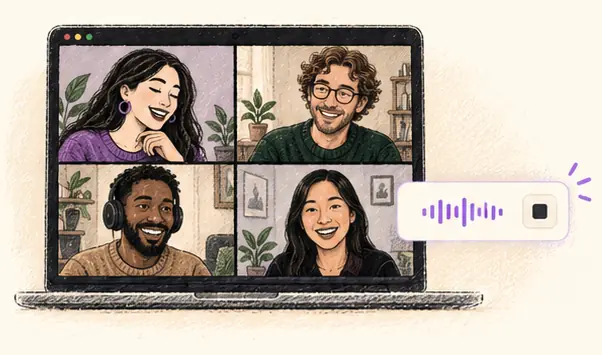
Zoom, Google Meet, Teams or Slack Huddles. Ottex captures microphone and computer audio on your Mac, whether you meet in a macOS app or your browser.
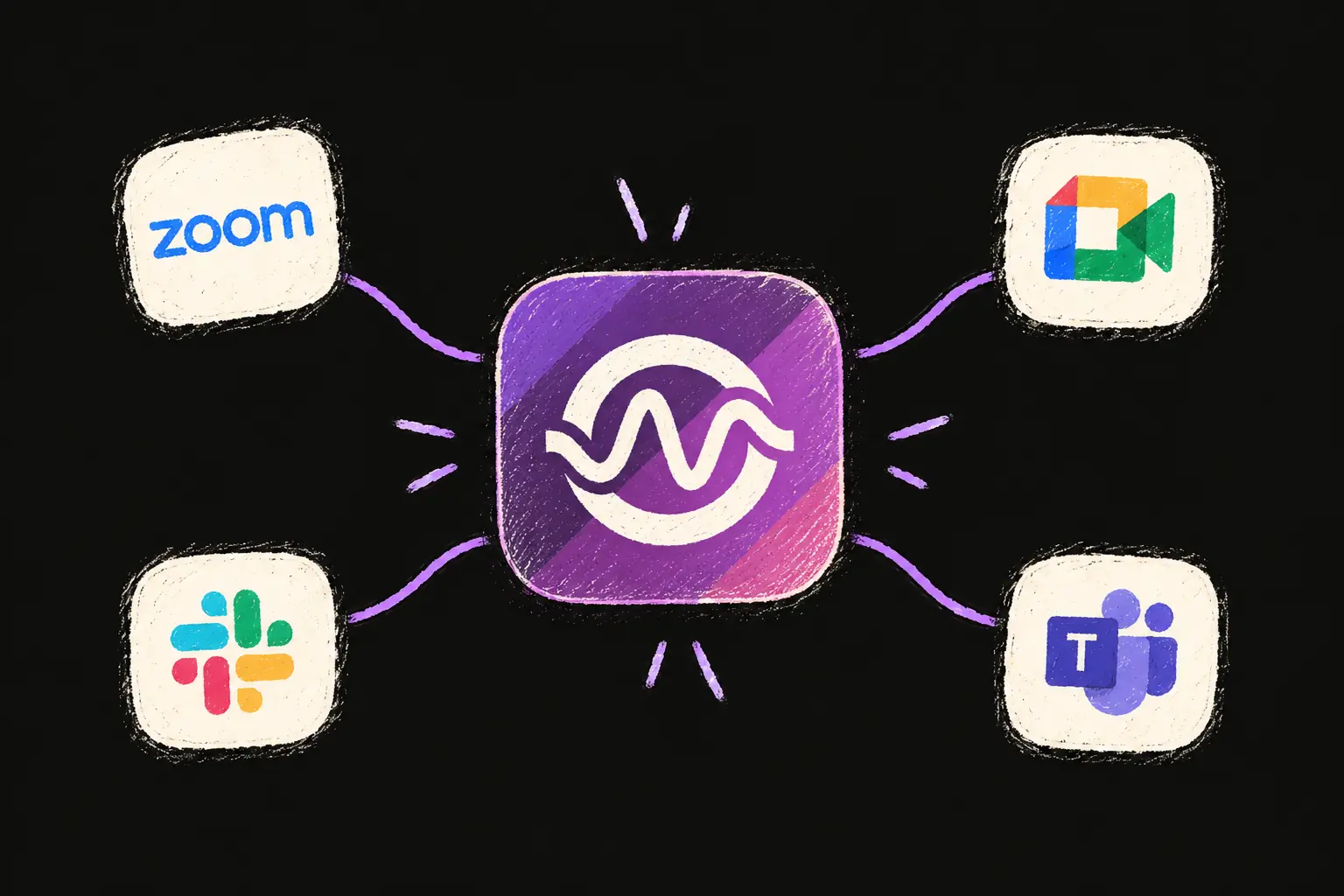
Record directly from your Mac. No meeting bot to invite, admit or manage.
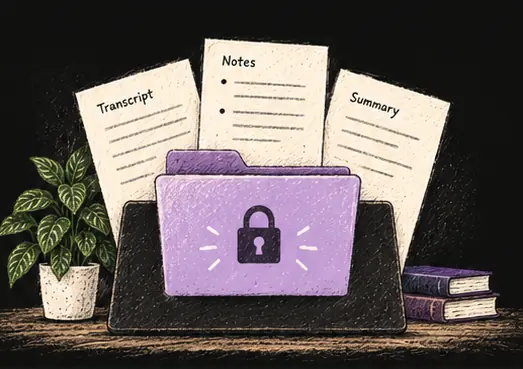
Your recordings, transcripts and notes are saved locally, not stored on Ottex AI servers.
One-on-ones, interviews and coffee catch-ups. Record with your Mac’s microphone and turn the conversation into notes.

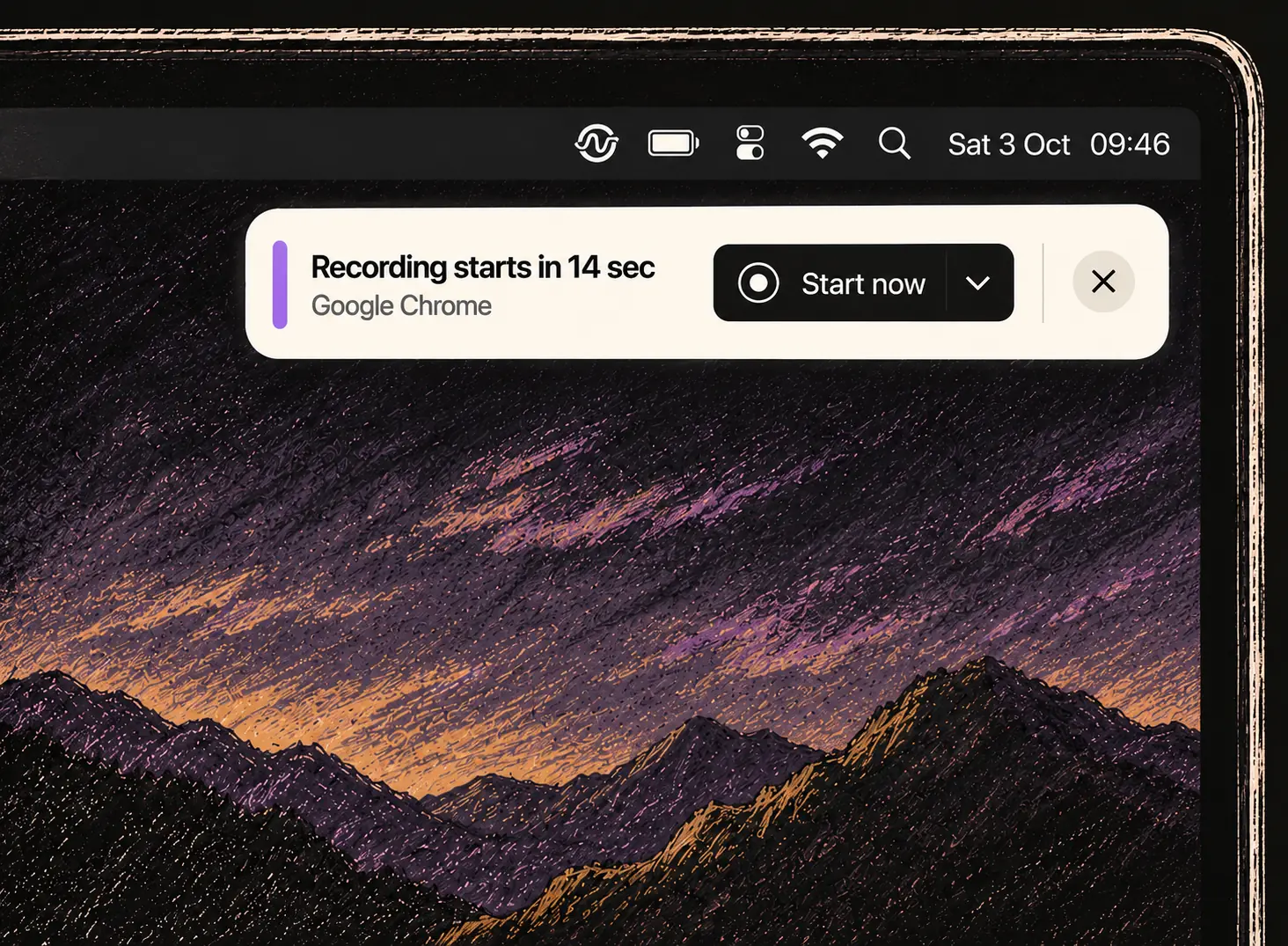
See upcoming meetings in Ottex. Turn on auto-recording for a reminder when your meeting app uses the microphone.
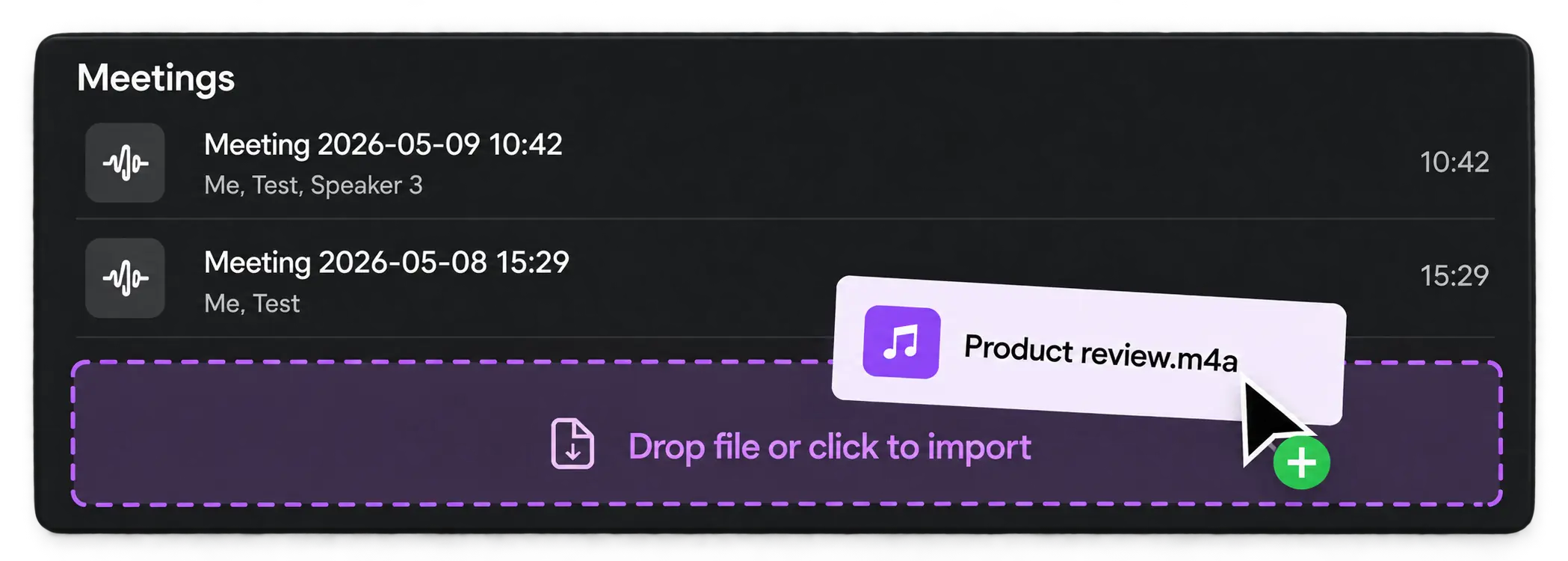
Capture microphone and system audio, or drop an MP3, WAV, M4A, or another supported file format into Ottex.
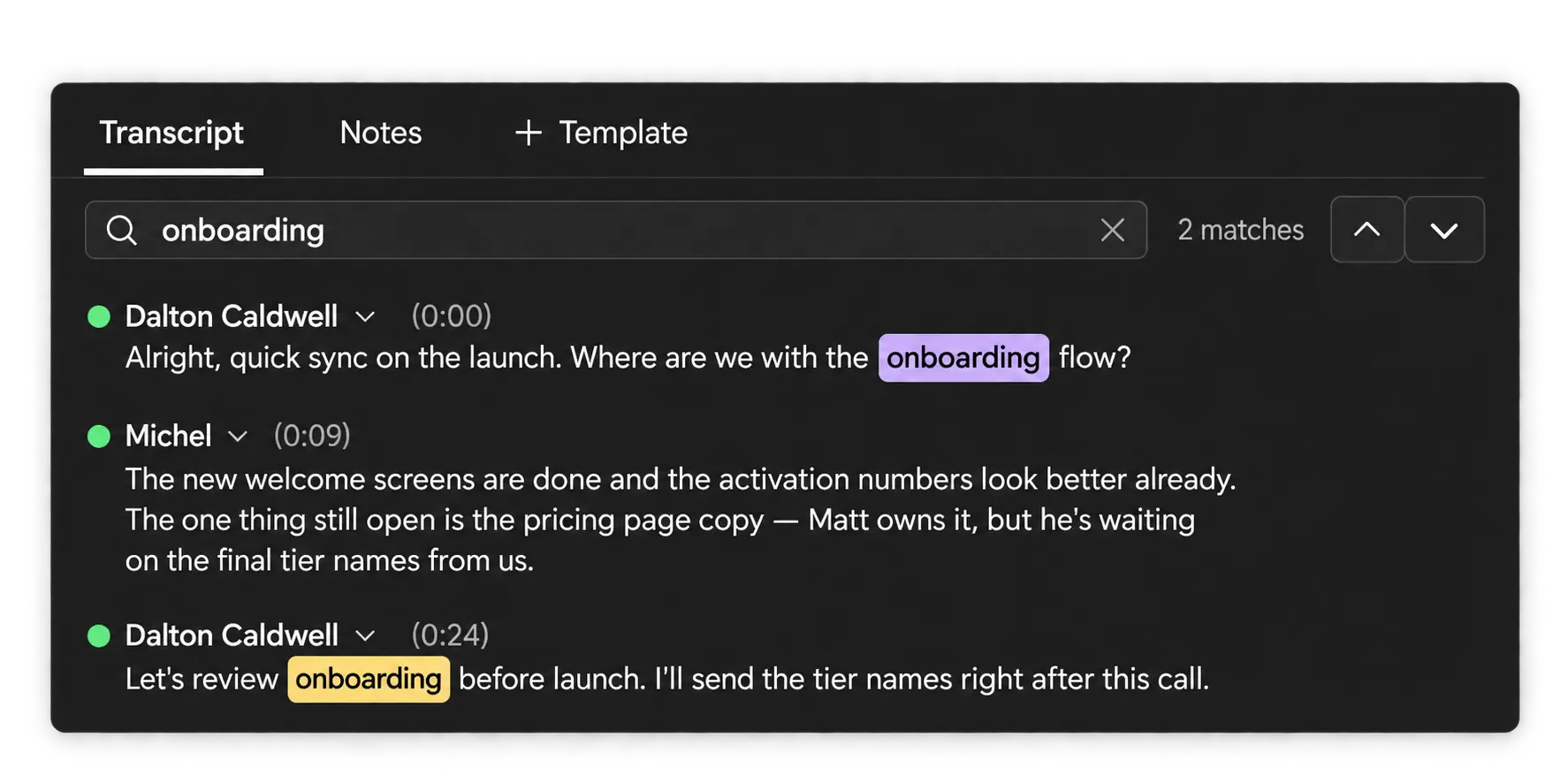
Review the conversation by speaker and timestamp. Search for a phrase inside the meeting.
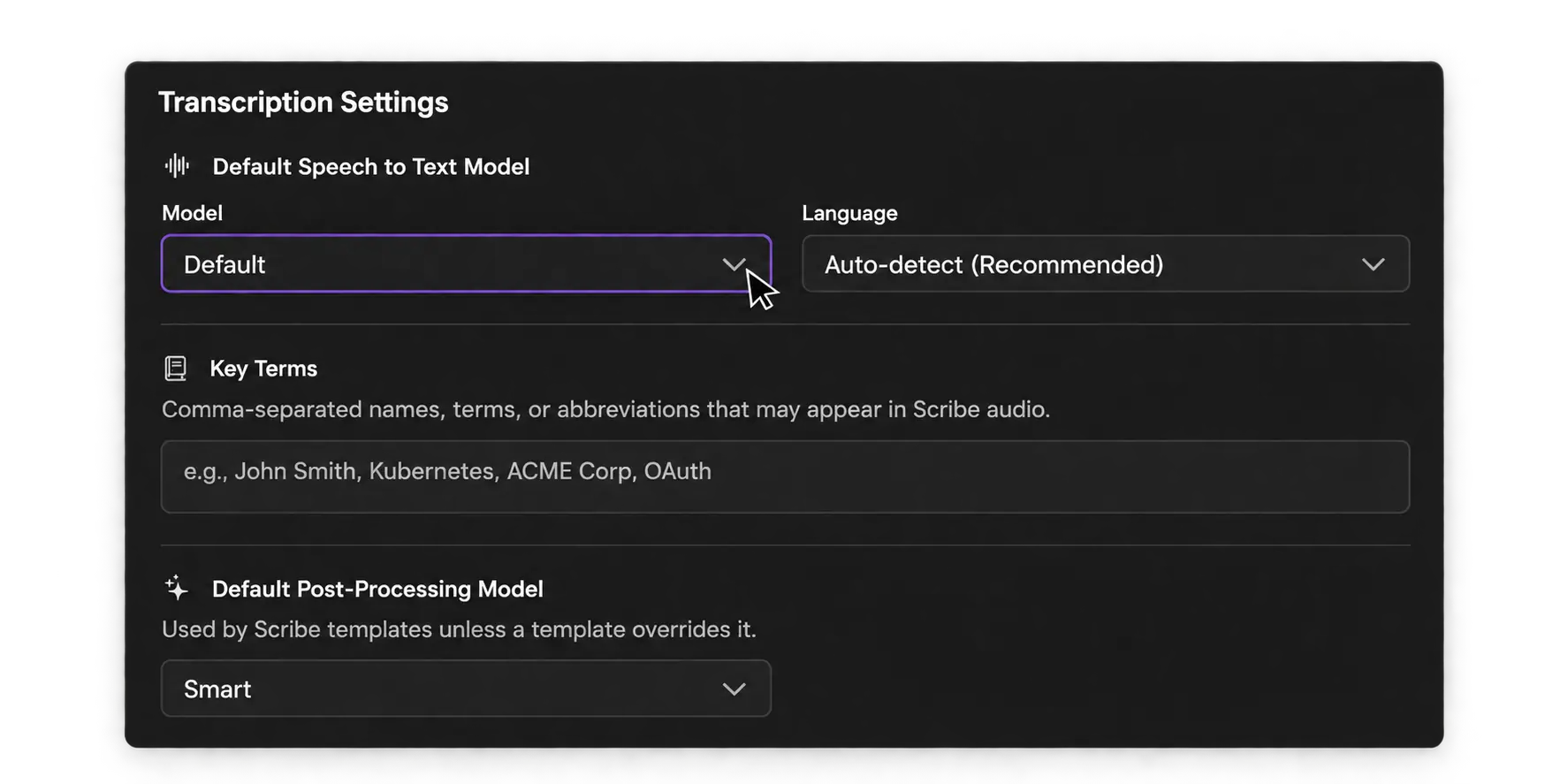
Choose a transcription model, language, key terms, and default post-processing model. Individual templates can override the post-processing model.
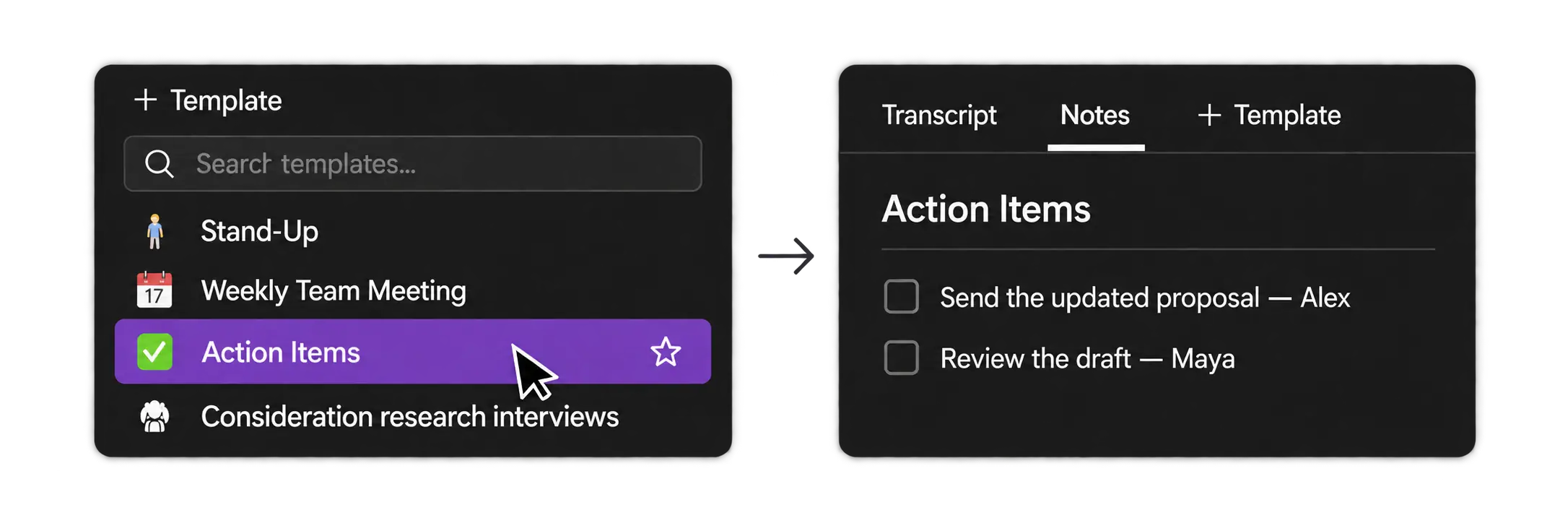
Meeting summaries, action items, research notes, or follow-up emails: save your instructions once as a reusable template. Then generate the document from any meeting in one click, without rewriting the same prompt in ChatGPT.
Automatically send transcripts, notes, and template results to your tools through webhooks. Choose what to send and where it goes.
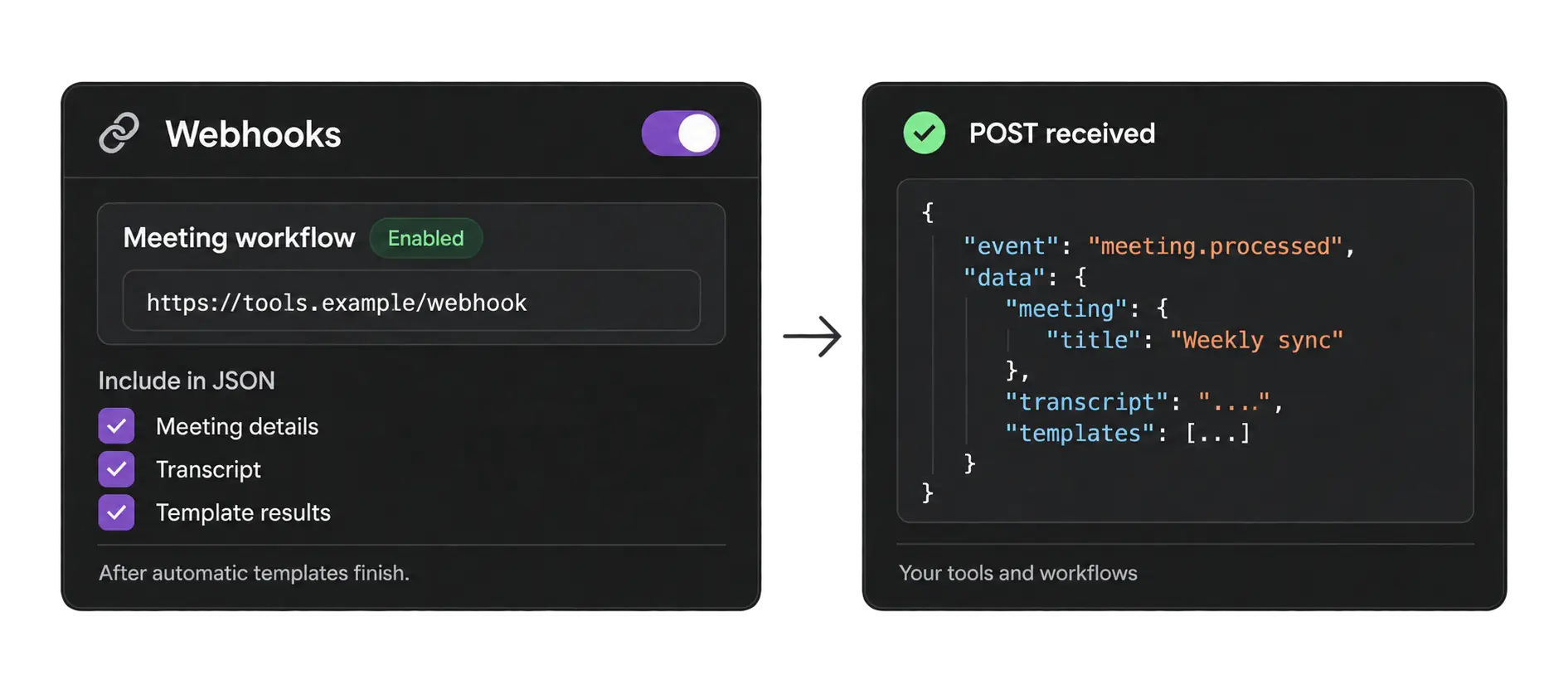
Delivery resumes when Ottex is open and online.
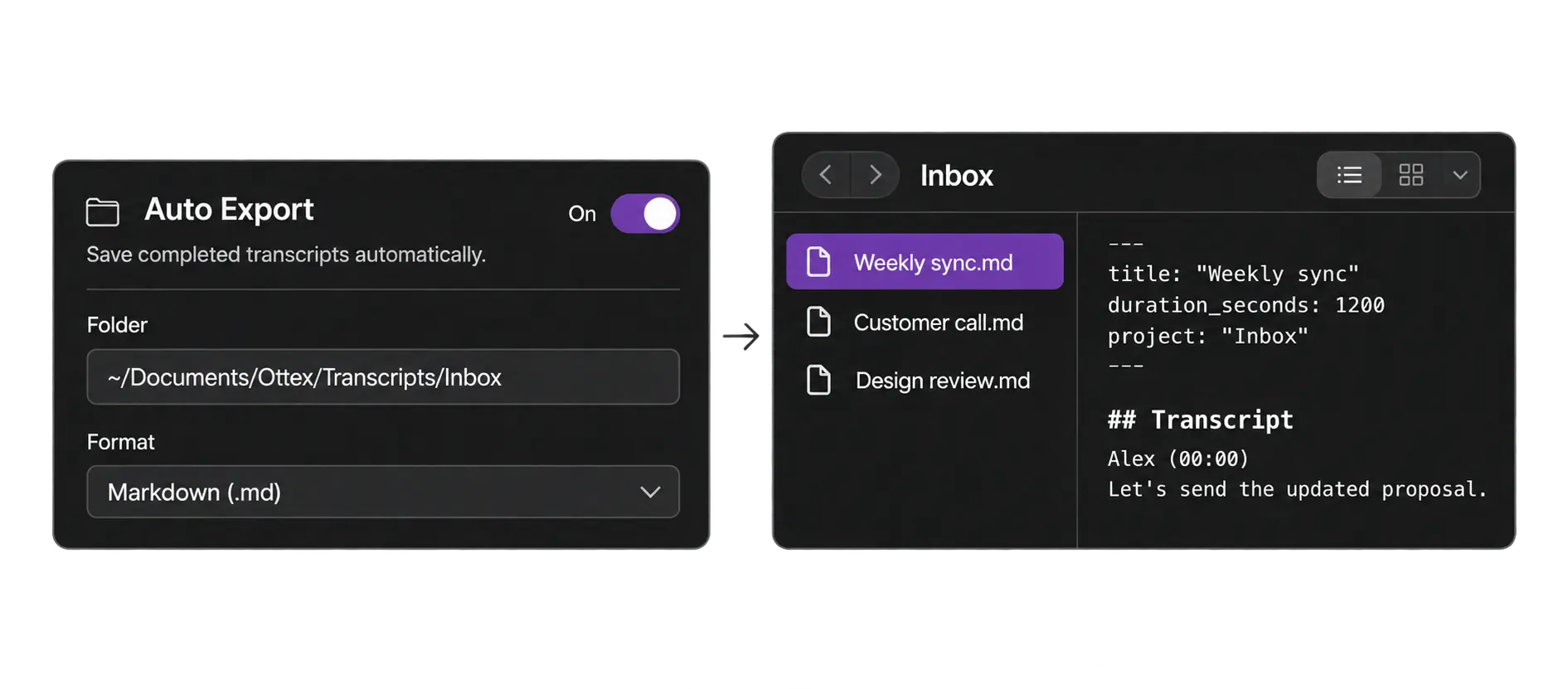
Save completed transcripts automatically as Markdown or plain text in a folder you choose. Your agents and scripts can read the files directly.
Ottex Camera · Experimental · macOS
Enable Camera Watermark and choose Ottex Camera in your meeting app. The Recording indicator appears automatically on your video while Ottex records.
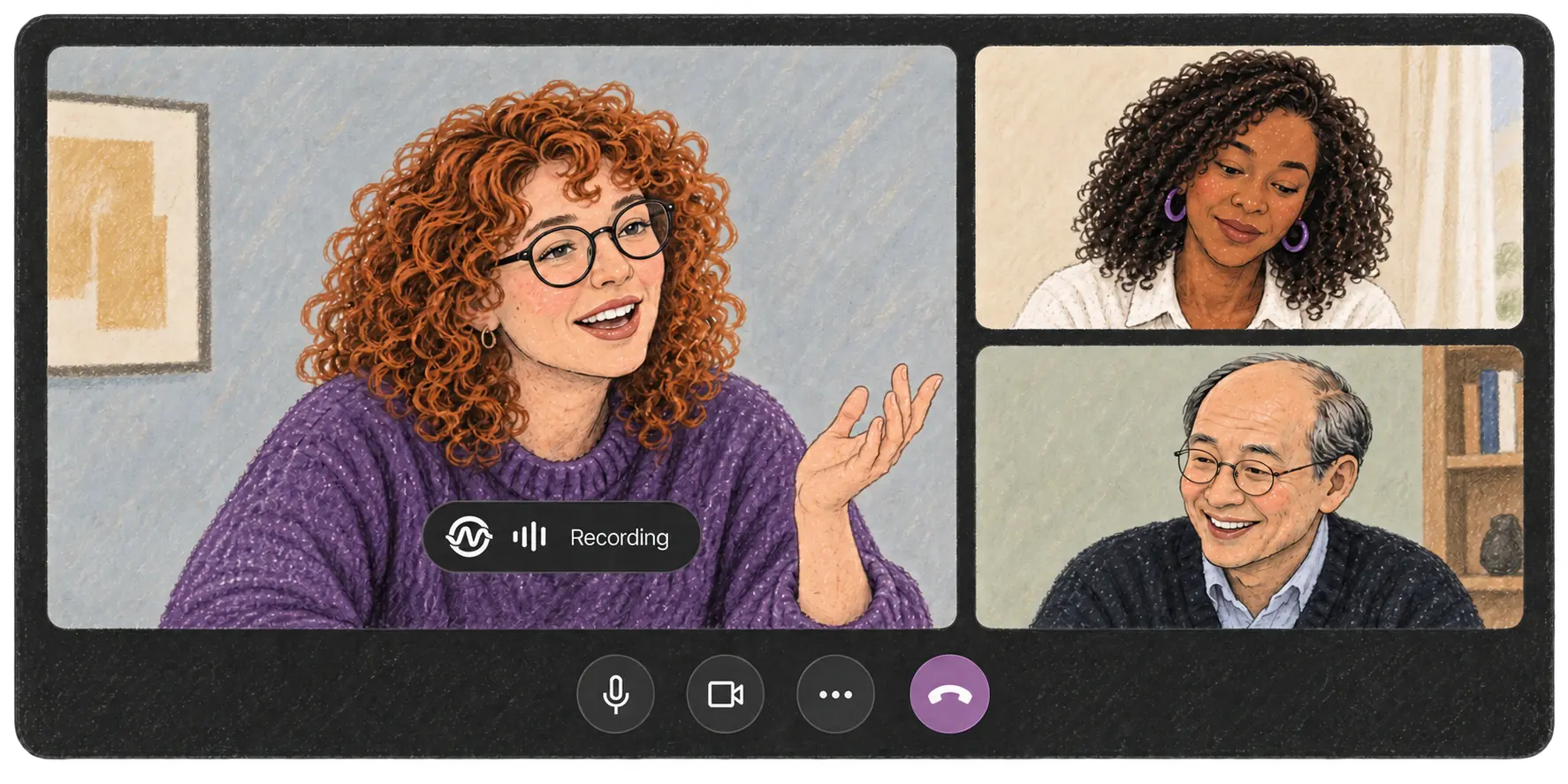
The updated proposal is ready. Maya, could you review it by Friday?
Yes, I’ll review it by Friday.
AI dictation and meeting notes with shared billing and administration.

Control where Ottex runs and which AI providers it uses.
Yes. Drag an audio file into Ottex or use Import Audio. Common formats include MP3, WAV, and M4A. Ottex creates a transcript you can search and use with templates.
Yes. Use a built-in template or write your own instructions. Apply it to the meeting transcript to create a separate output tab, then review and copy the result.
Choose from the providers and models available in Ottex, including supported local models and your own API keys. Features such as speaker labels vary by transcription provider.
No. A template creates a draft in Ottex. Review it and copy it into your mail app when it is ready.
Stop worrying about who said what. Be present. Ottex takes notes for you.