Meetings
Record meetings and conversations, import audio files, and get full transcripts with speaker identification.
Meetings is Ottex's recording workspace. Capture live audio, review a searchable transcript, then use templates to turn the conversation into notes, action items, follow-ups, and other finished outputs.
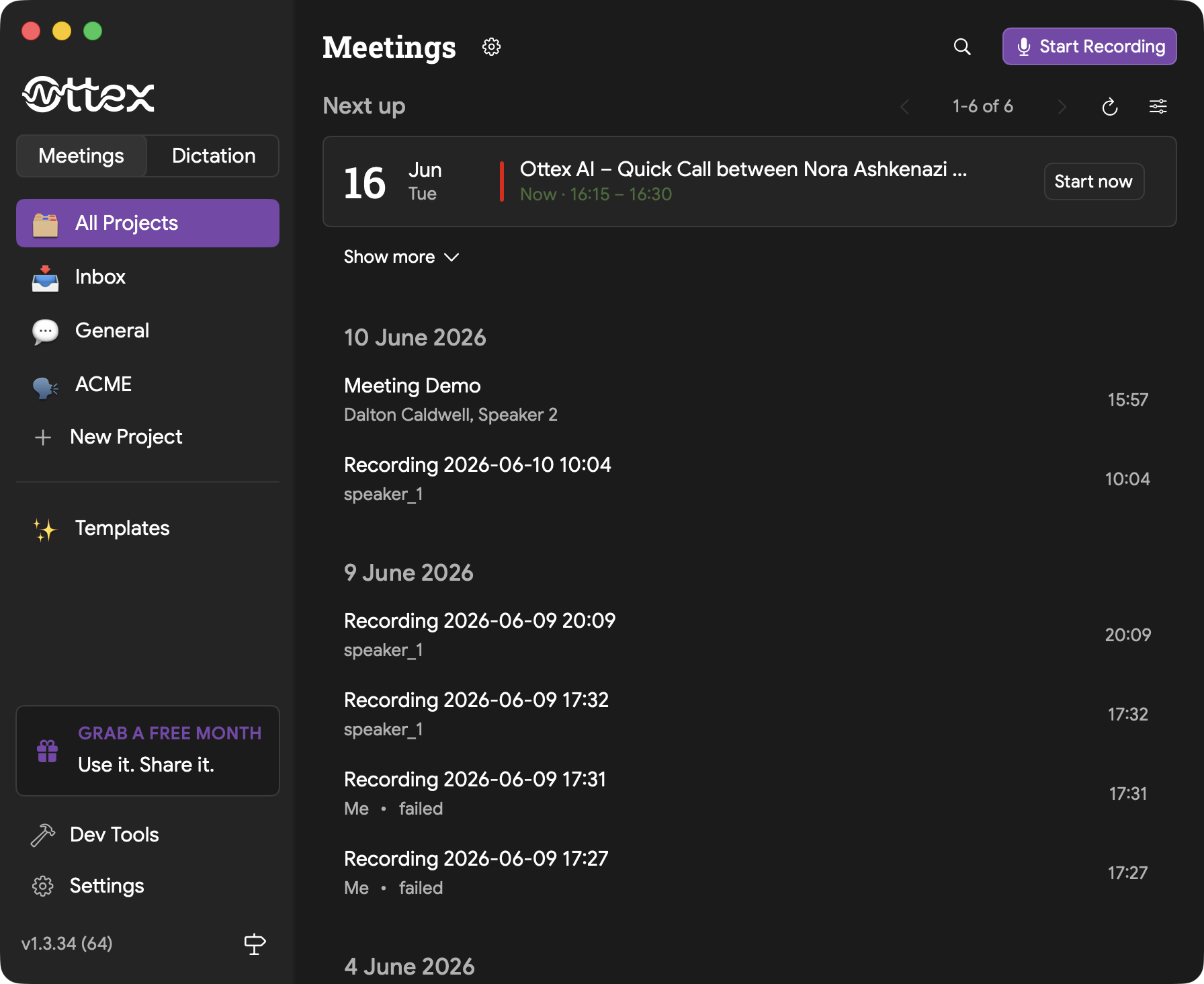
Recording a Meeting
- 1Open Ottex and go to Meetings in the sidebar
- 2Choose the project where the recording belongs
- 3Click "Start Recording" in the top right
- 4Ottex captures microphone audio and system audio if configured
- 5Click Stop when you are done
- 6Open the meeting to review the transcript and generated outputs
Importing Audio Files
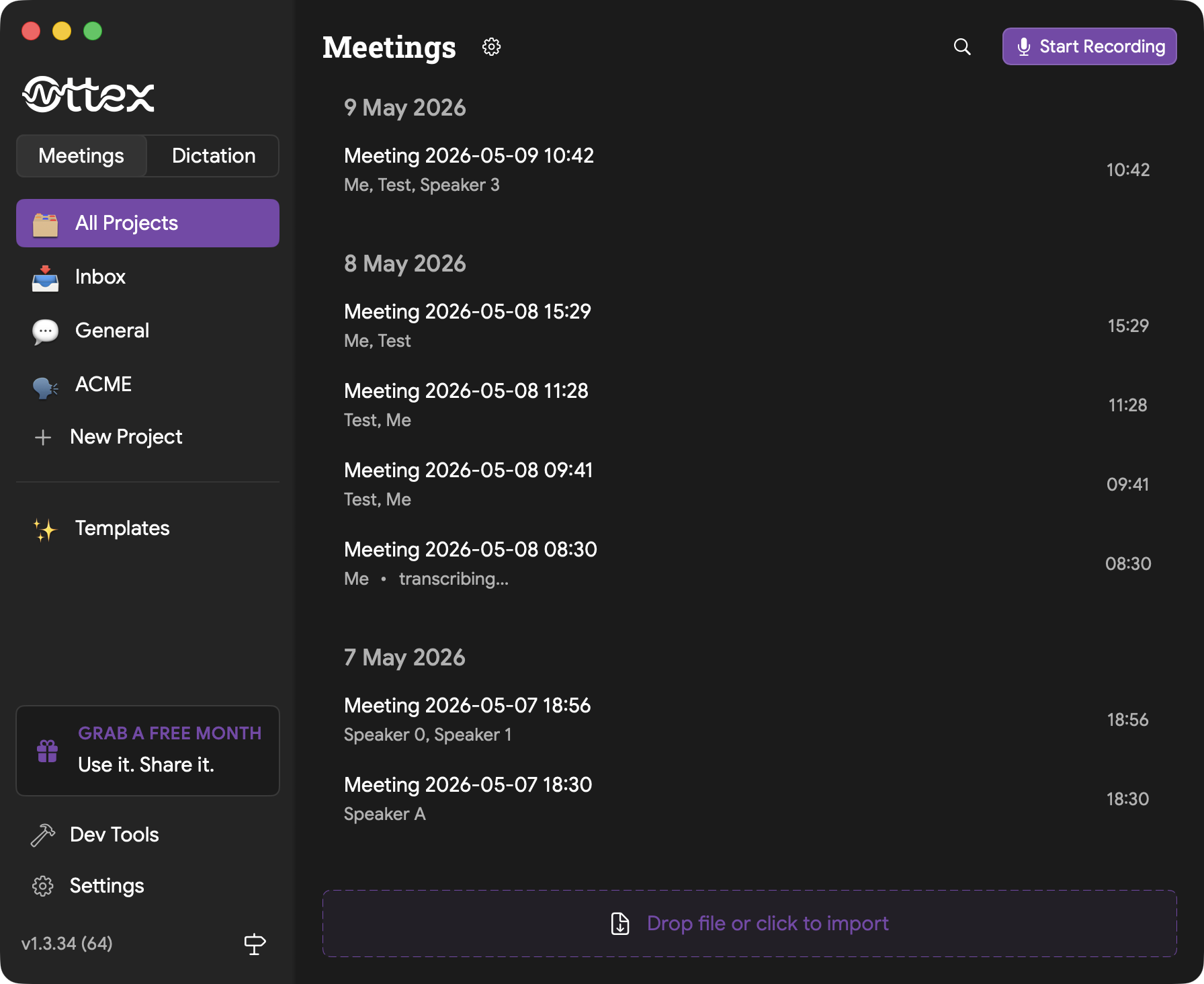
You do not have to record live. Drag an existing audio file into the drop zone at the bottom of Meetings, or click the drop zone to browse.
Supported formats include MP3, WAV, M4A, and other common audio formats.
Reading Transcripts
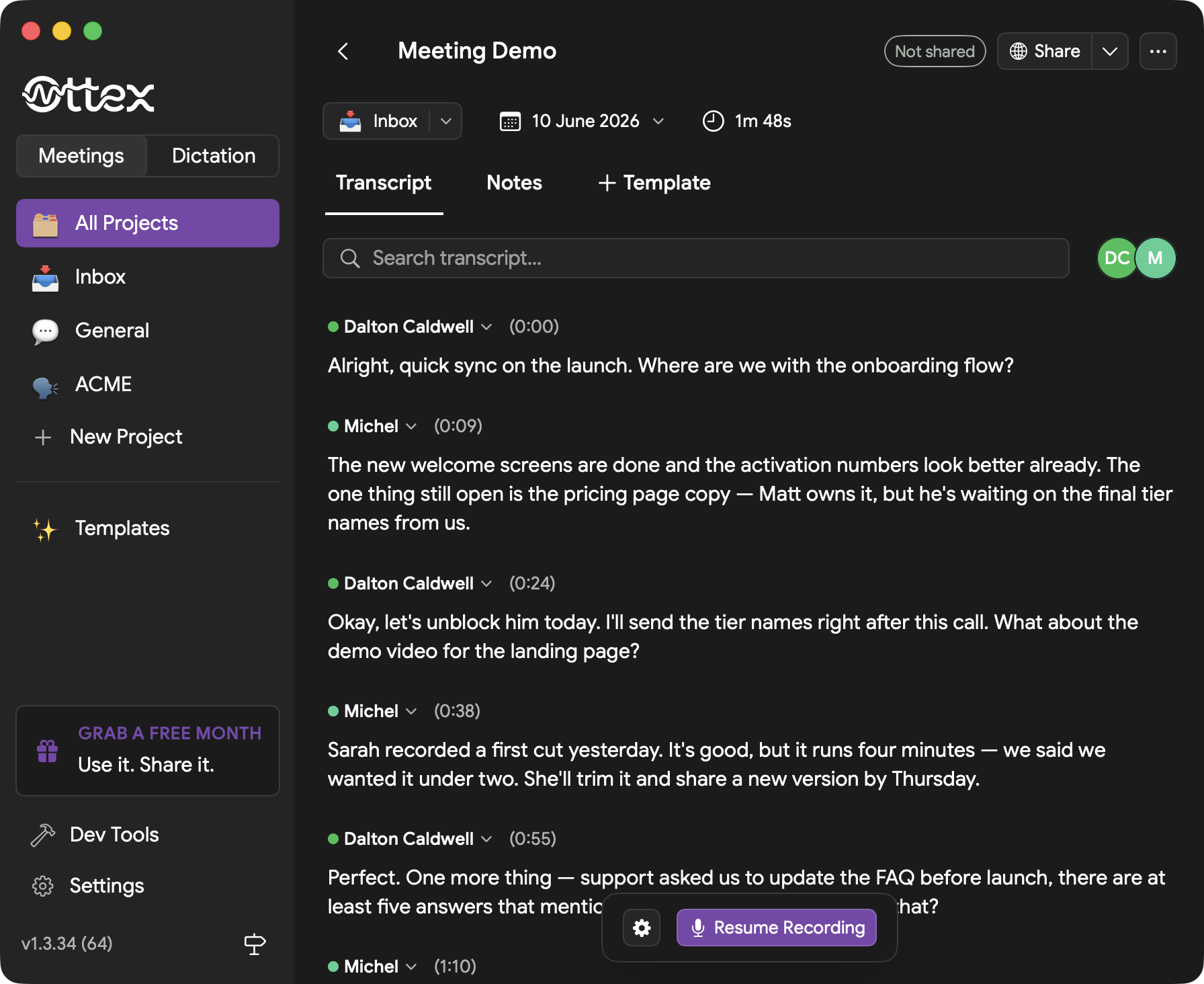
Open a meeting to read the transcript, search inside it, review speakers, and switch between transcript, notes, and template outputs.
AI Post-processing with Templates
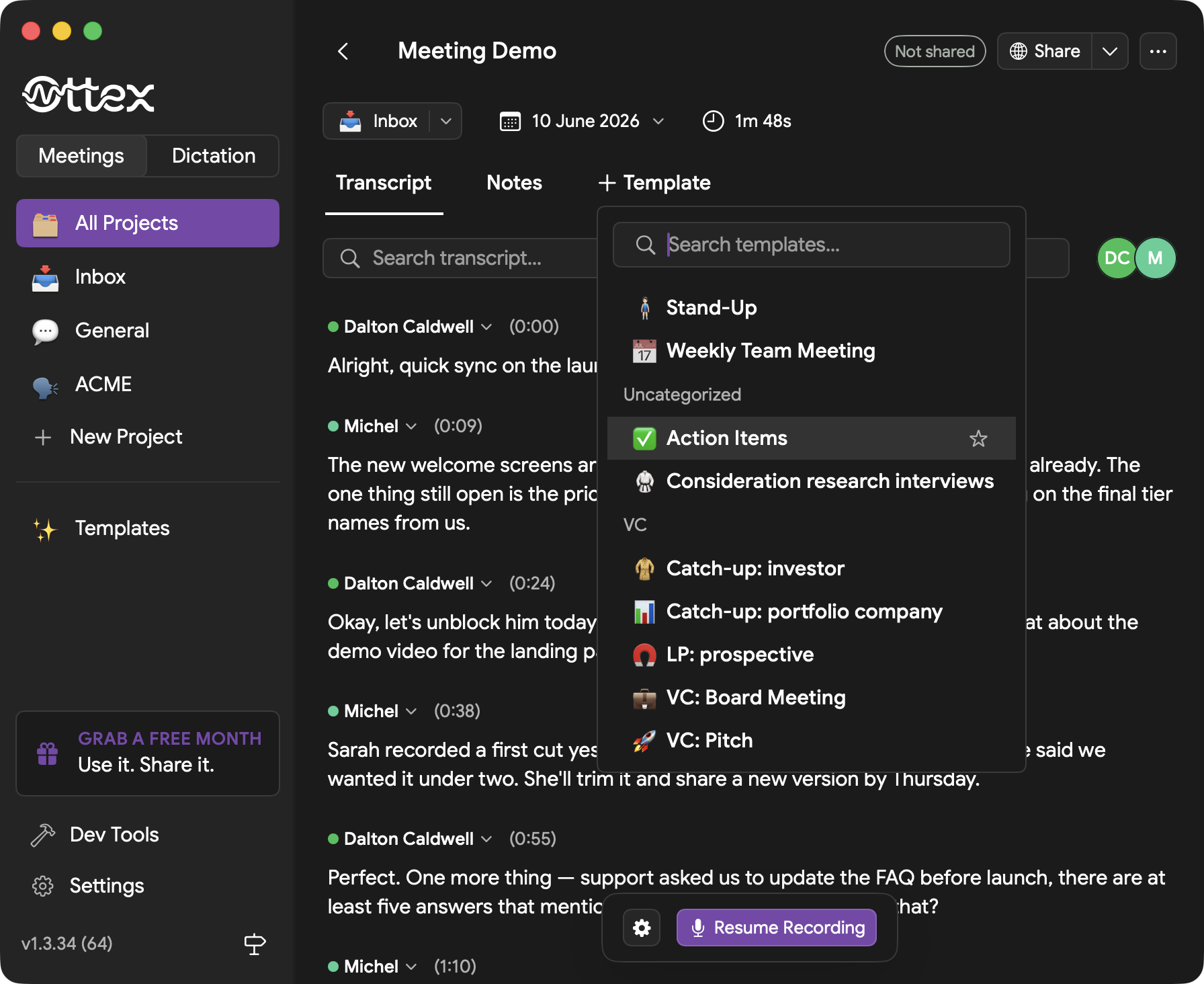
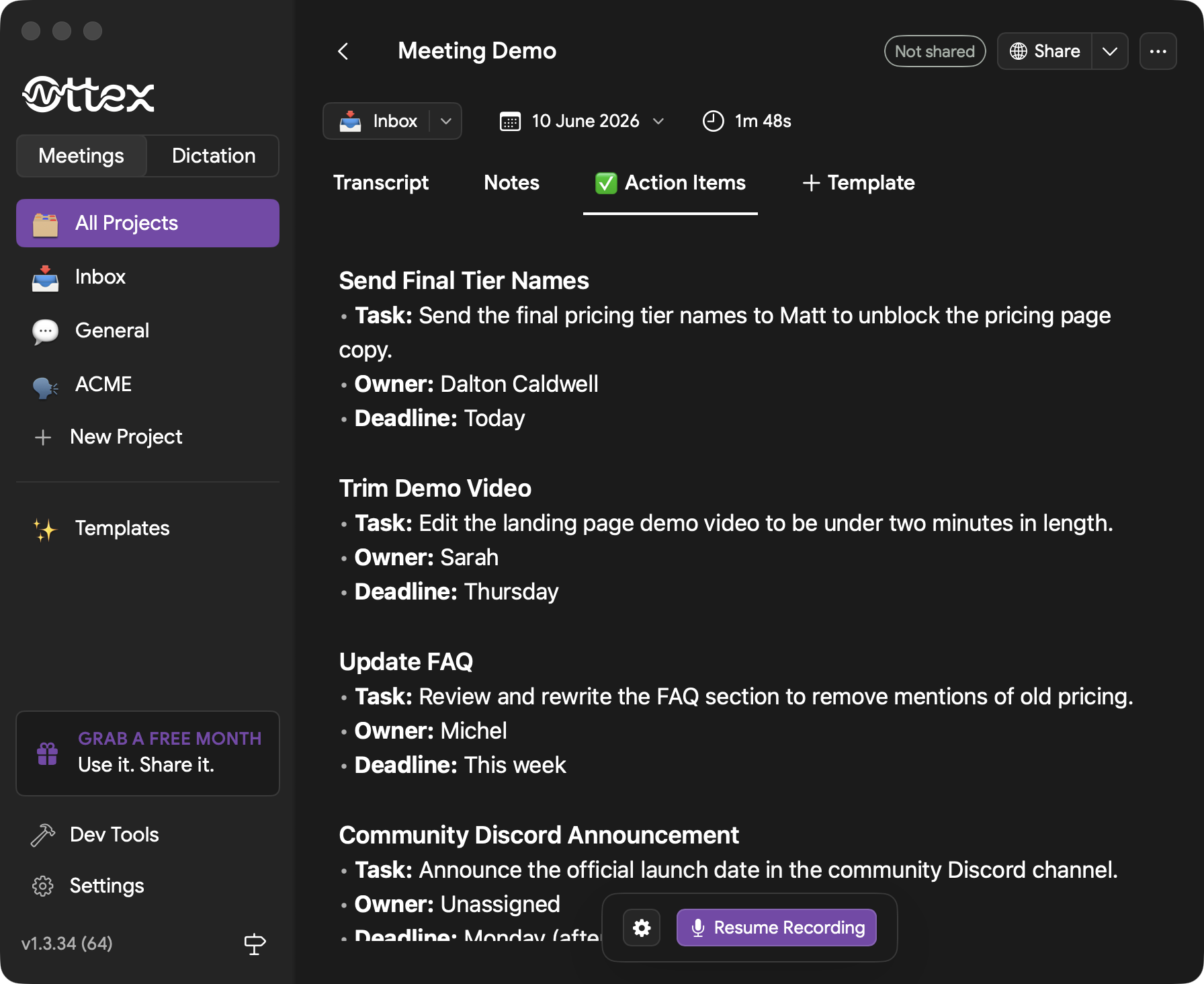
Templates run AI post-processing on the transcript. Use built-in templates such as Action Items, or create your own templates for team updates, research calls, customer notes, CRM summaries, and follow-up emails.
- 1Open a meeting transcript
- 2Click "+ Template"
- 3Choose a template or search by name
- 4Ottex processes the transcript with the selected template
- 5Review the generated result in its own tab
Speaker Diarization
When recording meetings with multiple participants, Ottex can identify different speakers and label their segments. This requires a provider that supports diarization, such as Soniox or Deepgram.
Speaker labels can be renamed in the transcript, and Ottex uses those names across the meeting view and template outputs.
Meetings Settings
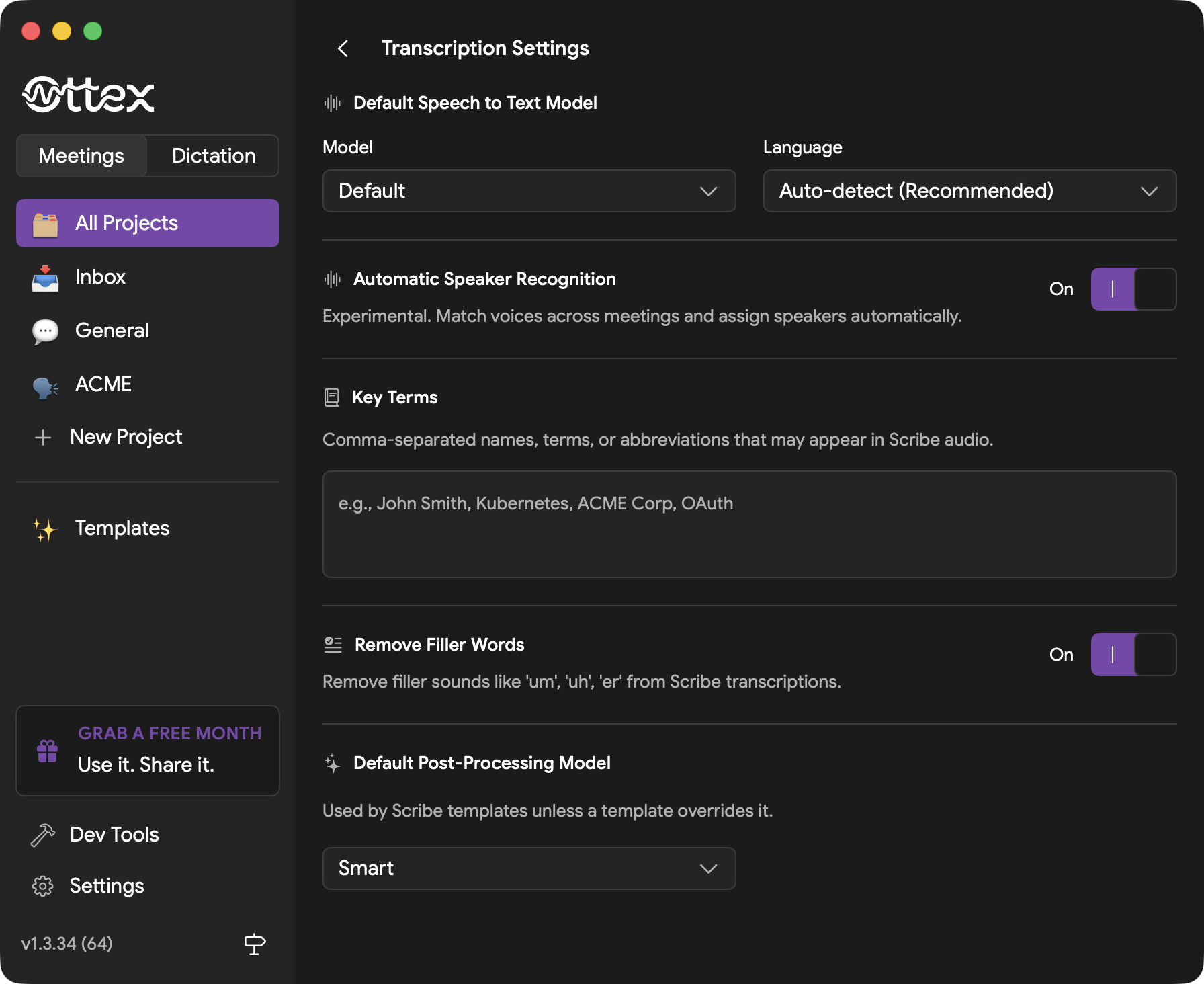
Click the gear icon next to "Meetings" to configure transcription and post-processing defaults:
- Speech-to-text model - which AI model to use for meeting transcription
- Language - automatic detection or a specific language
- Speaker recognition - match voices and assign speakers automatically
- Key terms - names, terms, and abbreviations that should transcribe correctly
- Post-processing model - the default model used by templates